KQED Inc. is a San Francisco-based non-profit public media organization serving Northern California. Founded in 1953, it began airing in 1954 as one of the earliest U.S. educational television stations. KQED operates two PBS television stations and the NPR radio station at 88.5 FM. Known for pioneering public television fundraising and originating its first daily news program, its radio station was the nation's most-listened-to public radio by 2011.
Since 2021, Uptech Studio has been the mobile development partner for KQED, helping to bring the range of amazing content KQED produces to Apple and Android devices.
When you're driving and want to catch up on your favorite KQED podcast or tune into live radio, the last thing you should worry about is fumbling with your phone.
This is the problem we set out to solve when we decided to bring KQED directly to the car dashboard via Apple CarPlay and Android Auto.
For those unfamiliar, Apple CarPlay and Android Auto transform your car's built-in display into a driver-friendly interface that mirrors select apps from your iPhone or Android device. Instead of glancing at your phone or navigating complex menus, you can access your favorite content through your car's touchscreen, steering wheel controls, or even Siri, all designed to keep your eyes on the road and hands on the wheel.
This is not your typical implementation discussion about CarPlay and Android Auto. The KQED mobile app is built using 100% Flutter which brought its own set of challenges to the table. We adore Flutter for its cross-platform support and ease of use. Flutter has enabled us to move fast and ship a high quality app that is the gold standard amongst Public Radio organizations. For the in-car experience to be successful, CarPlay and Android Auto had to work together with Flutter form a seamless experience.
This is the story of how we brought KQED's award-winning journalism, podcasts, and live radio programming into the car dashboards of thousands of vehicles across California and beyond.
First a plug: make sure to download the KQED iOS App or the KQED Android App.
Our primary goal was simple but profound: meet people where they are. That meant making KQED’s content as accessible in the car as it is from the phone.
Many listeners consume KQED content during their commute. According to listener surveys, the car is one of the top three places people engage with public radio. Before building CarPlay support, accessing the app while driving meant either:
We wanted to create an experience that felt natural and safe, as intuitive as turning on your car radio, but with all the power of on-demand digital content at your fingertips.
For our users, this meant we had to deliver:
Adding CarPlay and Android Auto support brings a variety of benefits both to listeners and KQED.
Every product initiative begins with some assumptions. Here were ours:
While some of the challenges we faced were common to CarPlay and Android, we approached the overall project by building for CarPlay first, so that we could address those challenges with that release before moving on to Android Auto and applying what we learned from the CarPlay implementation.
In the mobile app experience, we can show rich program descriptions, beautiful imagery, scrollable content, and complex navigation. CarPlay, by design, strips a lot of that away. Apple restricts how much text you can display, how deep your navigation can go, and what interactive elements you can include.
The problem: How do you represent KQED's diverse content catalog of live radio, daily news, talk shows, investigative podcasts, arts programs in a simple way that drivers can safely navigate?
Our approach: We organized content into three clear tabs:
This structure meant that whether someone wanted to jump right into live radio or catch up on a specific podcast show, they were never more than two taps away from listening.
Our mobile app stays updated with what's currently playing on KQED 88.5, shows timely content recommendations, and refreshes based on user behavior. But in CarPlay, we couldn't assume a constant data connection or that the app would always be in an active state.
The problem: How do we keep the CarPlay interface current when someone might connect their phone to their car once a week, or when they drive through areas with poor cell coverage?
Our approach: We implemented a smart syncing system that:
This meant that when you connect your phone, you see what's actually playing right now, not what was playing yesterday.
We use feature flags (or toggles) that let us turn features on or off for testing, support phased rollouts, or run A/B experiments. But CarPlay doesn't allow for complex UI updates or sudden interface changes while someone is driving.
The problem: How do we maintain our agile development approach and testing flexibility while respecting CarPlay's stability requirements?
Our approach: We built a feature flag system that controls which tabs appear in CarPlay:
carPlayTheLatestPodcastIsOn: Shows/hides "The Latest" sectioncarPlayLatestPodcastsIsOn: Shows/hides the Episodes tabcarPlayPodcastsTabIsOn: Shows/hides the Shows tabThis gave us the flexibility to test different configurations with small user groups before rolling out to everyone, while ensuring that changes only happened when someone first connected to CarPlay, not mid-drive.
One of our most head-scratching bugs involved a simple loading spinner. When someone tapped on a podcast show, then tapped on an episode within that show, the loading spinner would appear and never go away, even though the audio was playing perfectly.
The problem: CarPlay's navigation system works differently than traditional mobile navigation. When you nest screens several levels deep (Show List → Individual Show → Episode), certain UI callbacks don't fire as expected.
Our observation (noted in the code): "For some reason this isn't removing the loading spinner even though it gets called. Maybe because it's nested a few templates deep?"
Our workaround: We called the completion callback explicitly, but acknowledged this was an area that needed more investigation. Sometimes in product development, you ship with known quirks and iterate based on real-world usage.
CarPlay connections aren't as simple as "connected" or "disconnected." A phone might connect to a car multiple times during a single drive (tunnel interference, Bluetooth hiccups, phone restarts). We needed to track connection state without triggering duplicate analytics events or refreshing the interface unnecessarily.
The problem: How do we distinguish between the first meaningful connection of a drive versus temporary reconnections?
Our approach: We implemented a state tracking system that only logs a "CarPlay Connected" event the first time in a session, avoiding analytics pollution and unnecessary interface refreshes.
Android Auto doesn't work like a typical app screen. Instead, it uses a service-based architecture where your app responds to requests from the Android Auto system. Think of it like a waiter taking orders: Android Auto asks "what media do you have?" and your app needs to respond with a menu of options. This required a mental shift from our usual Flutter development patterns.
Unlike building a typical Flutter screen where we have complete control over layout and design, Android Auto strictly controls the user interface. We can only provide content organized as lists or grids. All the beautiful custom UI we built for the main app couldn't be used in Android Auto. We had to embrace this constraint and focus on content organization rather than visual polish.
Android Auto expects content to be organized in a tree structure: a root level with folders, and folders containing either more folders or playable items. Designing this hierarchy to match how listeners think about our content took careful planning. Should we prioritize shows or episodes? How do we surface live radio quickly while still making podcasts discoverable?
The Android Auto desktop simulator has limitations. To truly test the experience, we needed to test in actual vehicles or with physical head units. This meant enabling developer mode on Android devices (which requires tapping a version number ten times, like unlocking a secret level in a video game) and configuring "unknown sources" to see our development builds.
While Flutter excels at cross-platform development, Android Auto requires deep integration with native Android APIs. The Audio Service package provides a bridge, but we still needed to understand how the Java-based MediaBrowserServiceCompat communicates with our Dart code. Getting this handshake right was crucial for a smooth experience.
We discovered that tracking Android Auto usage differs significantly from CarPlay. Android Auto triggers connection events not just when users open the app in their car, but also when they're already listening and plug in. Understanding these nuances was important for accurately measuring feature adoption.
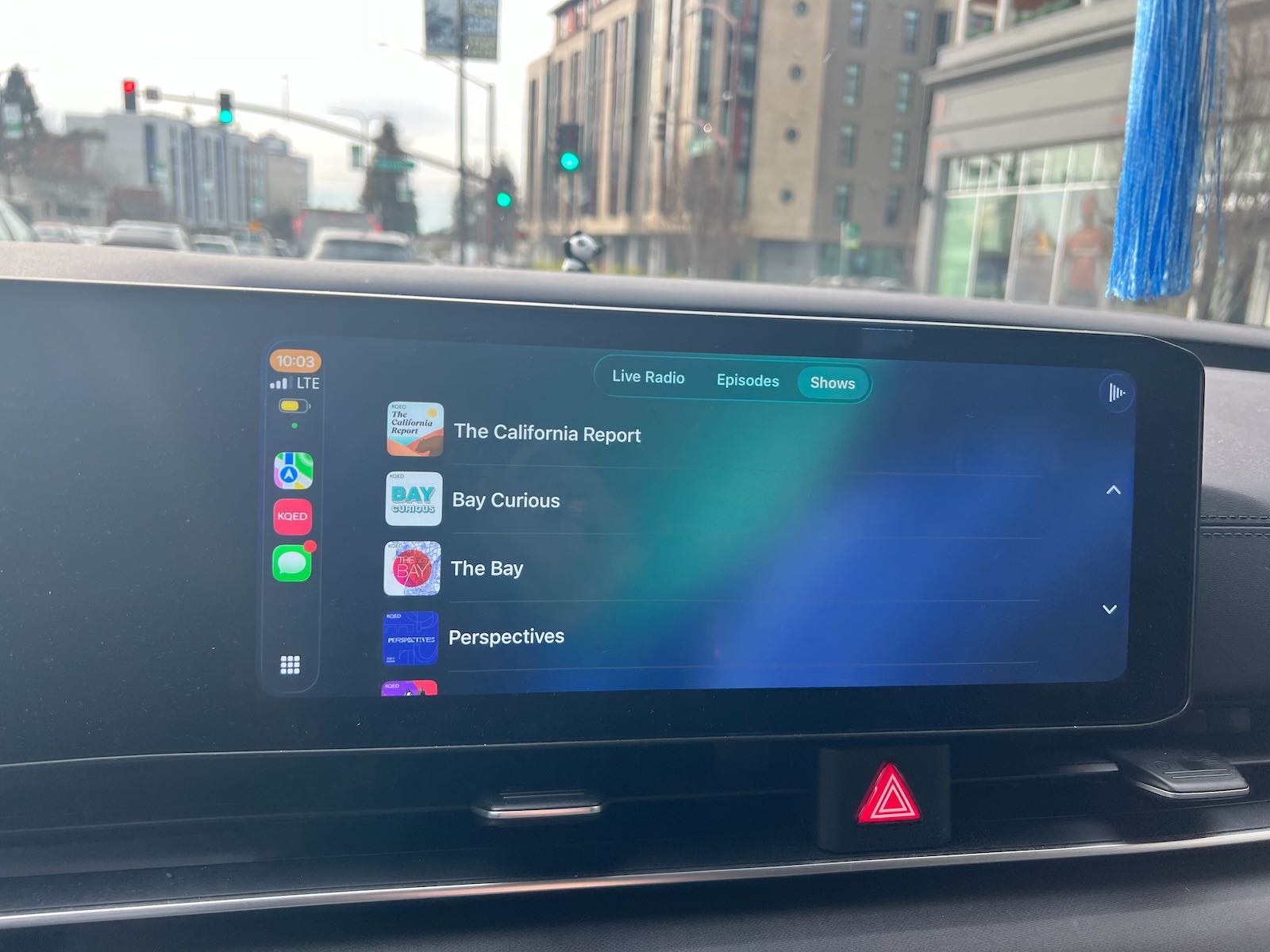
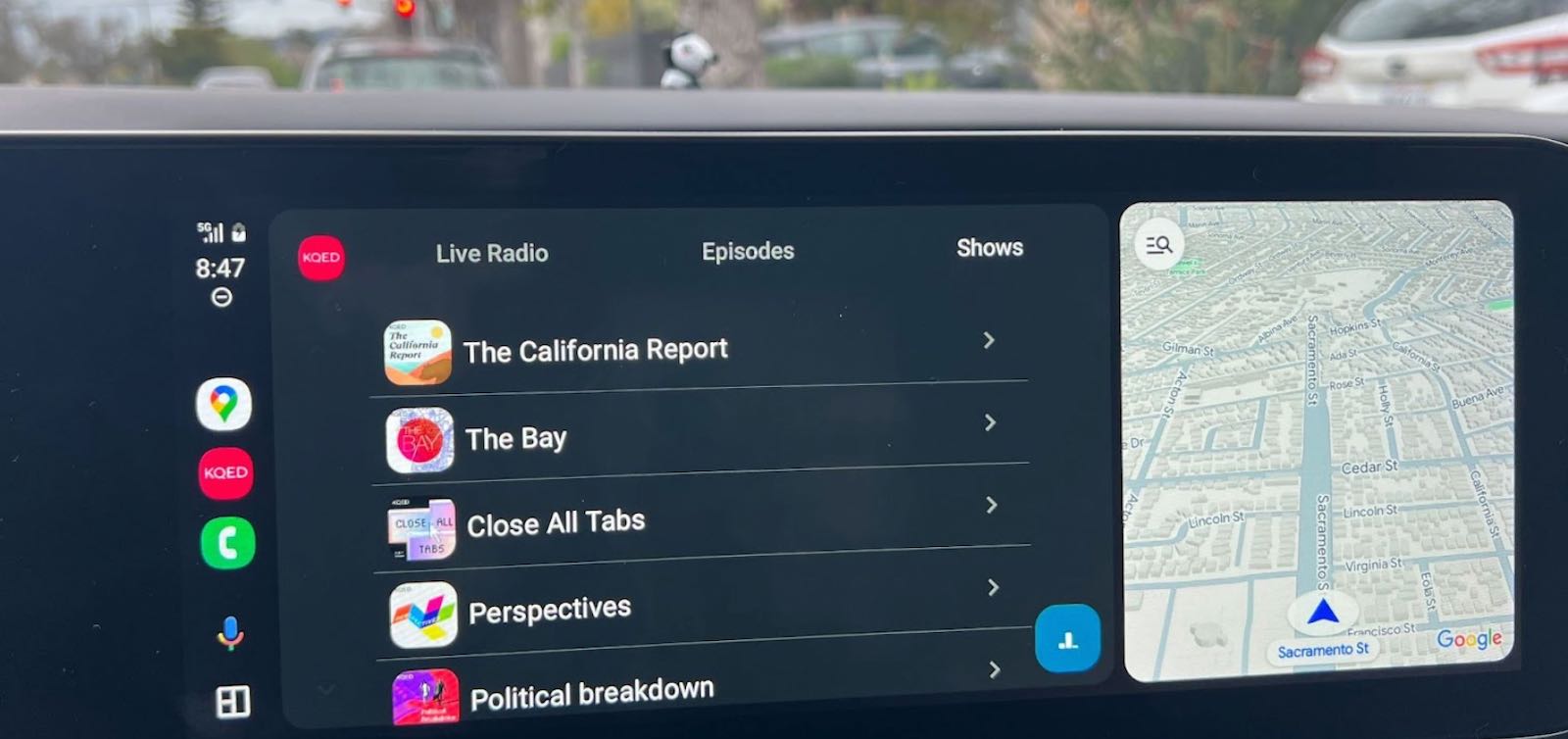
We built our CarPlay integration using Flutter, a cross-platform app framework that allows us to maintain a single codebase for iOS and Android. We utilized the flutter_carplay plugin, which bridges Flutter's Dart language with Apple's native CarPlay APIs.
At the time of building the CarPlay feature, the flutter_carplay plugin did not do everything we needed it to so we forked the plugin code and updated the package as needed. Since then they have added more functionality, including support for Android Auto. We do not use the Android Auto features of this plugin because one of our audio packages Audio Service supports Android Auto.
Our implementation follows a simple but effective pattern:
1. Template-Based UI. CarPlay uses predefined templates. We chose:
CPTabBarTemplate: The main container with multiple tabsCPListTemplate: For displaying lists of contentCPListSection: For grouping related items (like "Live Radio" vs "The Latest")CPListItem: Individual tappable items (shows, episodes)2. State Management. We use Riverpod to:
3. Dynamic Content Loading. The interface listens to several data sources:
CurrentRadioProgramNotifier: What's playing on KQED 88.5 right nowsortedPodcastsProvider: The podcast catalog, sorted by recencyFeaturesNotifier: Feature flags that control what appearsWhen any of these change, the CarPlay interface automatically rebuilds with fresh content.
Here's what happens when someone connects their iPhone to their car:
When someone taps an item:
To understand our implementation, it helps to know how Android Auto functions under the hood.
When you plug your Android phone into a compatible car (or connect wirelessly), Android Auto takes over your car's display. But it doesn't mirror your phone screen. Instead, it communicates with apps on your phone that have declared support for Android Auto.
For media apps like KQED, this communication happens through something called a MediaBrowserService. Think of it as a specialized customer service representative that knows everything about your app's audio content. Android Auto calls this service and asks questions:
getChildren method)playFromMediaId method)The service responds with organized lists of content, complete with titles, artwork, and whether each item is playable or just a folder containing more items.
One of KQED's key technical decisions was building our mobile app with Flutter, Google's UI framework for creating cross-platform applications. This choice has served us well, allowing us to maintain a single codebase for both iOS and Android while delivering native performance.
For Android Auto integration, we leveraged the audio_service package, part of the just_audio suite of Flutter packages. This package does the heavy lifting of implementing Android's MediaBrowserServiceCompat in native Java code, then provides Flutter-friendly APIs that let us write our logic in Dart.
We designed our Android Auto implementation around a central handler class called AndroidAutoHandler. This was a deliberate architectural choice to avoid code duplication. Here's why this matters:
Imagine a user is listening to a podcast when they plug into their car. When Android Auto launches, we want to show not just podcasts, but our entire content library: live radio, all shows, and all episodes. If we had implemented Android Auto logic separately in each audio handler (podcast, live radio, articles), we'd be maintaining the same code in multiple places.
Instead, our podcast handler, live radio handler, and other audio handlers all delegate to the same AndroidAutoHandler. This centralized approach means:
This Flutter package exemplifies the framework's approach to platform integration. It handles all the complex native Java code for implementing MediaBrowserServiceCompat, exposing simple Dart methods like getChildren and playFromMediaId. We write Dart code, and Audio Service ensures it works with the native media systems.
Based on our experience implementing CarPlay first, we followed the same pattern for the Android Auto experience by focusing on a three-tab experience:
Our implementation centers on two critical methods that respond to Android Auto's requests:
getChildren: The Browse Method
When Android Auto wants to know what content is available, it calls this method with a "parent ID." Think of it like asking "what's in this folder?"
root → We return our three tabs: Live Radio, Episodes, and ShowsliveRadio → We return KQED 88.5 and The LatestpodEpisodes → We return the newest episode from each showpodShows → We return all podcast showsshowId → We return all episodes for that showEach item we return includes metadata: title, artwork URL, and crucially, whether it's playable or just another folder to browse into.
playFromMediaId: The Play Method
When a user taps something playable, Android Auto calls this method with the item's unique ID. Our job is to:
This is where Flutter's cross-platform architecture shines. The playback logic we'd already built for the mobile app worked seamlessly for Android Auto. We didn't need to write separate playback code; we just needed to bridge Android Auto's requests to our existing Flutter playback system using Riverpod for state management.
We implemented thoughtful analytics to track Android Auto adoption. When a user first opens KQED in Android Auto, we log a connection event. But we don't want to spam our analytics every time someone's phone reconnects or switches apps.
Our solution: track the timestamp of each connection event. If a new connection happens within 10 minutes of the last one, we skip logging it. This gives us accurate adoption data without overcounting brief disconnects or app switches.
We also learned an interesting behavioral difference: Android Auto connection events fire more frequently than CarPlay events because Android Auto can launch when users are already listening and then plug in, not just when they open the app while connected. This insight helps us interpret our analytics data correctly.
One often-overlooked detail makes a huge difference in user experience: remembering where someone left off in a podcast episode. When a user selects a podcast in Android Auto, our code checks if they've previously listened to that episode. If they have, we automatically seek to their saved position before starting playback.
This small touch prevents the frustration of restarting a 45-minute podcast from the beginning when you'd already listened to 30 minutes during your morning walk.
While implementing CarPlay and Android Auto required platform-specific work, Flutter's architecture made it far more manageable than it could have been. Here's how:
Shared Business Logic: All our logic for fetching podcasts, managing playback state, and organizing content lives in Dart code that works identically on iOS and Android. When we fetch the list of podcast shows for either platform, we're using the exact same code that populates our mobile app screens.
Riverpod State Management: The Riverpod package gave us a clean way to access app-wide state from our platform-specific handlers. Need the current podcast list? Just read from the sortedPodcastsProvider. Need to start playback? Call the PlayerNotifier. The same state management that powers our mobile app seamlessly extends to CarPlay and Android Auto.
One of the most valuable lessons was that constraints breed creativity. The intentional restrictions within CarPlay and Android Auto of limited text, simple navigation and restricted UI elements forced us to make hard decisions about what matters most. This made the experience better, not worse.
Our mobile app has dozens of features. Our car interfaces have three tabs. And for the driving use case, those three tabs are exactly what's needed.
Apple's CarPlay Human Interface Guidelines and Android Auto’s Design for Driving initially felt restrictive. Why can't we show album artwork larger? Why can't we have custom buttons? Why is navigation so limited?
Then we drove with the app. And it made perfect sense. Every guideline is designed around one principle: keep the driver's attention on the road. Once we embraced that principle, our design decisions became obvious.
We expected CarPlay and Android Auto users to primarily listen to live radio, our "lean back" experience. The data showed strong engagement with podcast episodes and show browsing. People were using their drives to actively explore our content catalog, not just passively consume what was on air.
This insight is now influencing how we think about content curation and recommendations for future updates.
We launched with a minimum viable product: live radio, The Latest, and podcast access. Based on usage patterns and feedback, we've been able to iterate with confidence, knowing the foundation was solid.
Feature flags gave us the flexibility to test changes with small groups before rolling out to everyone, this is crucial when you're building for a safety-critical environment.
The most important benefit is safety. According to the National Highway Traffic Safety Administration, distracted driving claimed 3,308 lives in 2022 alone. By bringing KQED into the CarPlay interface, we're reducing the temptation for listeners to interact with their phones while driving.
With these integrations, listeners can:
The CarPlay and Android Auto interfaces opened up new opportunities for content discovery. Before, if someone was listening to live radio in their car, they might not know about our podcast catalog. Now, they can browse shows and episodes right from their dashboard.
We surface "The Latest" daily news podcast prominently, introducing listeners who might only know KQED as a radio station to our on-demand journalism.
Early metrics suggest that CarPlay and Android Auto users show different engagement patterns than mobile-only users:
As a public media organization, KQED's mission is to inform, inspire, and involve the communities they serve. CarPlay helps fulfill that mission by making quality journalism and storytelling accessible in one of the places people spend significant time: their cars.
During breaking news events, commuters can now stay informed with live coverage. During long drives, they can dive into investigative podcasts. And during school drop-offs, they can catch five-minute news updates from The Latest.
Our initial support of auto platforms is just a start and only one piece of KQED’s broader mobile strategy.As cars become increasingly connected and voice-first interfaces become more sophisticated, we're excited to continue evolving how listeners experience public radio on the go.
The lessons learned from this implementation, particularly around content organization, seamless transitions, and cross-platform architecture, will inform how we approach future in-car and connected device experiences.
For now, whether you're an iOS user with CarPlay or an Android user with Android Auto, KQED is ready to accompany you on your journey.
If your team is considering adding CarPlay or Android Auto support, here are our recommendations:
Start Simple: Don't try to replicate your entire mobile app. Focus on the core use case that makes sense while driving.
Respect the Context: Driving is fundamentally different from sitting on a couch with your phone. Design for glanceability and one-tap actions.
Test in Real Cars: The simulator is useful, but nothing beats real-world testing in actual vehicles with different screen sizes, connectivity strengths, and driving conditions.
Use Feature Flags: Build flexibility into your implementation so you can iterate safely.
Talk to Your Users: Our best insights came from listening to people who actually used CarPlay and Android Auto during their commutes.
Be Patient with Platform Limitations: Some things you want to do simply aren't possible. Work with the constraints rather than fighting them.
Building CarPlay and Android Auto support for the KQED app wasn't about checking a feature box or keeping up with competitors. It was about meeting the mission: bringing quality journalism, storytelling, and information to people where they are.
Every product decision, every technical challenge, and every line of code was in service of one goal: making it effortless and safe for listeners to access KQED while driving.
The result is an experience that feels natural, stays out of the way, and lets the content shine. When someone connects their phone and KQED appears on their dashboard, they don't think about the technology. They just tap "Live Radio" and listen.
And that, ultimately, is the mark of good product design: becoming invisible so the experience can be everything.
The KQED Android mobile app is built with Flutter and available for iOS and Android. Android Auto support requires Android 6.0 or later and a compatible vehicle or head unit. To use CarPlay, you'll need an iPhone and a compatible vehicle or aftermarket CarPlay system.
Want to read more about our work with KQED? Check out this write up of some of the mobile app work we did earlier.

